
Translate Text in Images with AI
PhotoTextFix rewrites the text that is already part of your image — labels, headlines, menu lines — and repaints it in the same place. Add a language, run the edit, and check the result before you publish.

What is image localization?
Image localization means rewriting the words inside a picture so they read correctly in another language. The text is baked into the pixels, so you cannot retype it like a document: the new words have to match the existing typeface, weight, spacing and background.
PhotoTextFix does that rebuild with AI. You add the target languages, and the editor translates the visible text and repaints it into the layout that is already there. Each added language uses one edit.
Translate product images
Product shots and catalog renders usually carry a name, a short claim and a few specs. Redoing the artwork for every market is slow; translating the text in place keeps one image and one layout.
- Label position, colour and lighting stay where they were
- Short claims often need rewriting, not word-for-word translation
- Check units, sizes and model numbers — they are easy to miss
Translate marketing posters
Posters, flyers and ads mix a large headline with small print: dates, venues, legal lines. Image localization looks most convincing on the headline; the small print is where a second pass usually pays off.
- Translate the headline first, then the small print
- Spanish, French and German often run longer — check the line still fits
- Never leave a date or a price translated but unverified
Real localization results
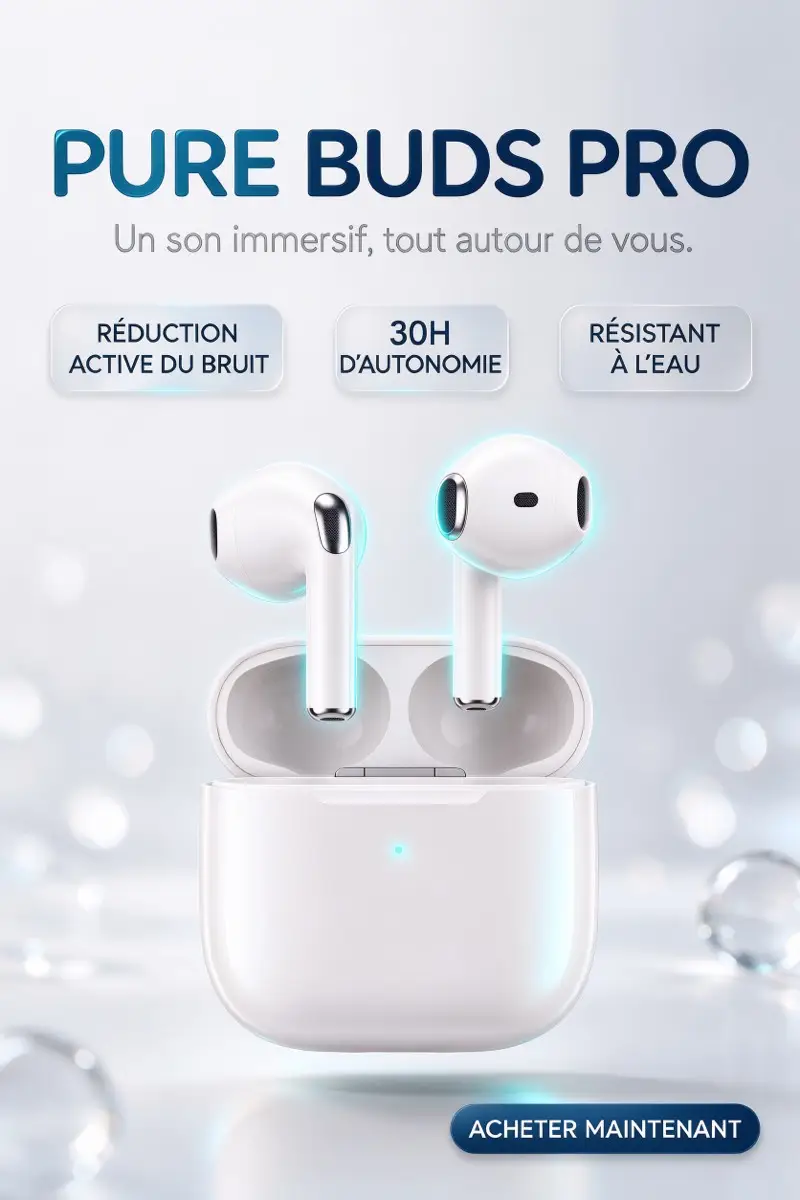
The same two source images from above, edited in PhotoTextFix: one into French, one into German. Nothing was rebuilt by hand — the layout, type and background are still there, only the words changed.



Supported languages
PhotoTextFix localizes text into 14 languages: Spanish, Brazilian Portuguese, German, French, Italian, Dutch, Polish, Russian, Turkish, Arabic, Hindi, Thai, Vietnamese and Indonesian.
One source image can produce several language versions — each language is its own edit, so the original stays untouched and you get a finished copy per market. Latin-script languages are the most reliable; with Arabic, Hindi or Thai, proofread every character before you publish.
Localization FAQ
Can I translate text in an image without Photoshop?
Yes. Upload the image, add the target language and run the edit. You do not need layers or the original design file; the editor rebuilds the text over the existing background.
Does the rest of the image stay unchanged?
That is the goal, and it is what to check. Large, isolated headlines survive best. Dense areas — fine print, patterned backgrounds, text over photos — need a closer look, and sometimes a second edit.
Which languages can I translate into?
14 languages: Spanish, Brazilian Portuguese, German, French, Italian, Dutch, Polish, Russian, Turkish, Arabic, Hindi, Thai, Vietnamese and Indonesian. Latin-script languages are the most reliable; for Arabic, Hindi and Thai, proofread every character.
Can I translate one image into several languages?
Yes. Run the same source image once per language: every run is a separate edit with its own result, and the original file is never modified. That is how you keep one master image and ship a version per market.
What if the translated text does not fit?
Longer words can collide with the layout. Shorten the wording, or translate one line at a time with only that area selected, then compare the result at full size.