

How to Edit Text in a JPG Without the Original Design File
Need to edit text in a JPG or PNG but only have the flattened image? Learn why image text is hard to change, which method to use, and how to check the result.
PhotoTextFix Editorial Team · Published November 12, 2026 · 5 min read
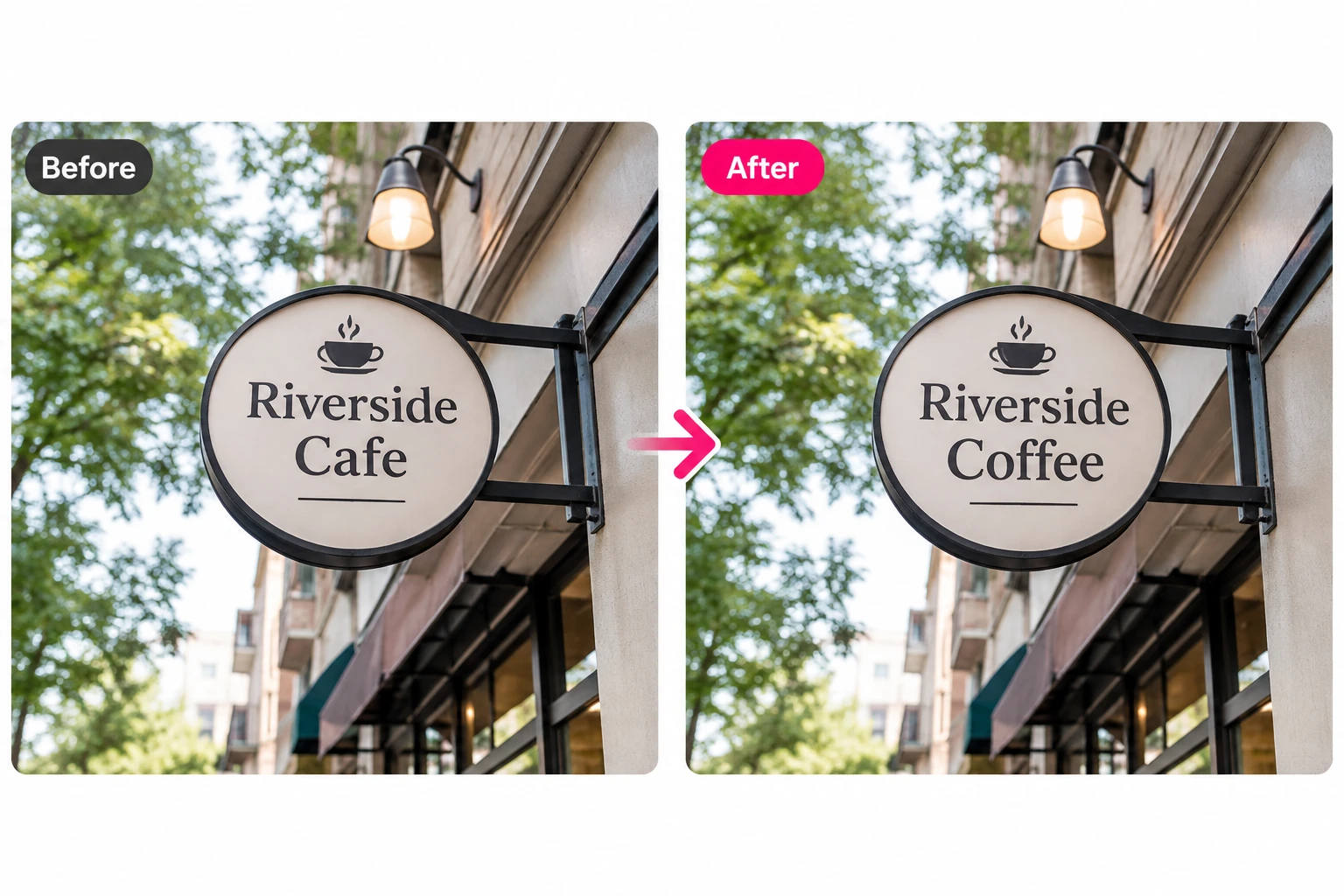
The problem: the words are part of the image
You have a JPG with the wrong date, an outdated price, or a typo in the headline. The design itself is fine, but the original Photoshop, Illustrator, Canva, or other project file is missing.
That is a common problem with flattened images. In an ordinary JPG or exported PNG, the visible letters are usually stored as pixels—not as separate, editable text objects. You cannot simply click a word and type a replacement the way you would in a document.
The right method depends on how much needs to change, how complex the background is, and whether you still have access to the original design file.
First, choose the right editing method
| Your situation | A practical option | What to keep in mind |
|---|---|---|
| You have the original layered design file | Edit the original text layer | This usually gives the most control over the exact font, spacing, and layout. |
| You only have a JPG or flattened PNG and need to replace a short line | Use an AI image text editor | The model has to reconstruct the old text area and render the new wording. Inspect the result carefully. |
| You need a completely different layout or many paragraphs changed | Rebuild the design in a design editor | Recreating the layout may be more predictable than asking an image model to rewrite a large amount of text. |
| You only need to add a new caption | Use an add-text workflow | You do not need to replace existing words if the image has enough empty space. |
If you only have the exported image and the change is limited to a short phrase, an AI text-editing workflow can be a useful middle ground between manual retouching and rebuilding the entire design.
How to edit text in a JPG with an AI workflow
1. Start with the best copy of the image
Use the original export whenever possible—not a screenshot of a screenshot or a compressed copy downloaded from a messaging app. More detail gives the editing model more visual information to work with.
Check that the text is readable at normal zoom. If the letters are already blurred, tiny, curved, or heavily distorted by perspective, a close match will be harder.
2. Describe the exact change
Be specific about both the old wording and the replacement. For example:
Replace “SUMMER SALE” with “AUTUMN SALE”. Keep the existing headline area, alignment, color and overall poster layout. Do not change the other text.
A clear instruction reduces ambiguity. If the image contains several similar text blocks, name the location as well—such as “the headline at the top” or “the price in the lower-right corner”.
3. Mark the target area when needed
Automatic target detection can be useful when the image has one obvious text item. If there are several prices, labels, or headlines, mark the intended area so the model has a clearer target.
Do not mark a much larger area than necessary. A focused target can help reduce unintended changes to nearby visual details.
4. Review the result at full size
Do not judge only by the thumbnail. Zoom in and check:
- Is the replacement wording spelled correctly?
- Are all numbers, decimal points, currency symbols, and dates correct?
- Does the new text fit the original area?
- Are the edges of the letters clean?
- Is there a visible patch where the old text was removed?
- Did any nearby text, logo, product detail, or background element change unexpectedly?
For a price, date, or product specification, verify every character before publishing or sharing the image.
Why some JPG text edits are harder than others
A short line on a flat background is usually a simpler editing task than small text over a detailed photograph. The model needs to reconstruct the pixels behind the old lettering and create new lettering that fits the image.
Common difficult cases include:
- Decorative or handwritten fonts.
- Curved, arched, rotated, or strongly perspective-distorted text.
- Small or low-resolution lettering.
- Text crossing faces, product edges, or intricate patterns.
- Busy textures and gradients behind the original words.
- Long paragraphs that require many lines to be redrawn.
An AI editor can produce a visually plausible result, but it does not recover the original font file or hidden pixels with certainty. If exact typography or legal accuracy is essential, keep the original editable source file or recreate the text in a design tool.
Try the image text editing workflow
PhotoTextFix is designed for short text changes in existing images. Upload a JPG, PNG, WebP, or supported HEIC image, describe the wording to change, and optionally mark the target area. Review the generated result before downloading.
Edit text in an image with PhotoTextFix
Quick checklist before you export
- Use the highest-quality source image available.
- Quote the old and new wording exactly.
- Identify the target by its location if the image has multiple text blocks.
- Check spelling, numbers, spacing, and alignment at 100% zoom.
- Confirm that nearby content has not changed unexpectedly.
- Keep the original file as a backup.
Frequently asked questions
Can I edit text in a JPG without Photoshop?
Yes. If you only have a flattened JPG, you can use an AI image text editor to replace a short piece of wording. The tool reconstructs the text area rather than editing a hidden text layer. Results depend on the font, resolution, and background.
Can I change text in a PNG too?
Yes. PNG is also commonly used for flattened graphics and screenshots. The same limitation applies: if the text has been flattened into pixels, it is not a separate editable text object.
Will the new text use exactly the same font?
Not necessarily. Standard, clearly readable fonts are generally easier to approximate. Decorative, handwritten, curved, or perspective-distorted lettering may not match exactly.
Can I replace several text areas at once?
You can describe multiple changes within the supported limits of a single edit. For distant or visually complex areas, separate edits may make it easier to review each result.
Does editing a JPG restore the original pixels behind the old text?
No. Those pixels are not stored as a separate hidden layer in a flattened image. The model estimates and redraws the covered area using the visible image context.
Try it on your own photo
Upload a photo, make the change, and compare the result before you publish.
About the author
Written and maintained by the PhotoTextFix Editorial Team. Each workflow is checked against the current version of PhotoTextFix before we link to it.