

How to Change a Café Name and Opening Hours on a Menu Photo
A dense café menu is a hard target for text edits. Here is how to swap the café name and the opening hours in one export while every other line stays exactly where it was.
PhotoTextFix Editorial Team · Published November 17, 2026 · 5 min read
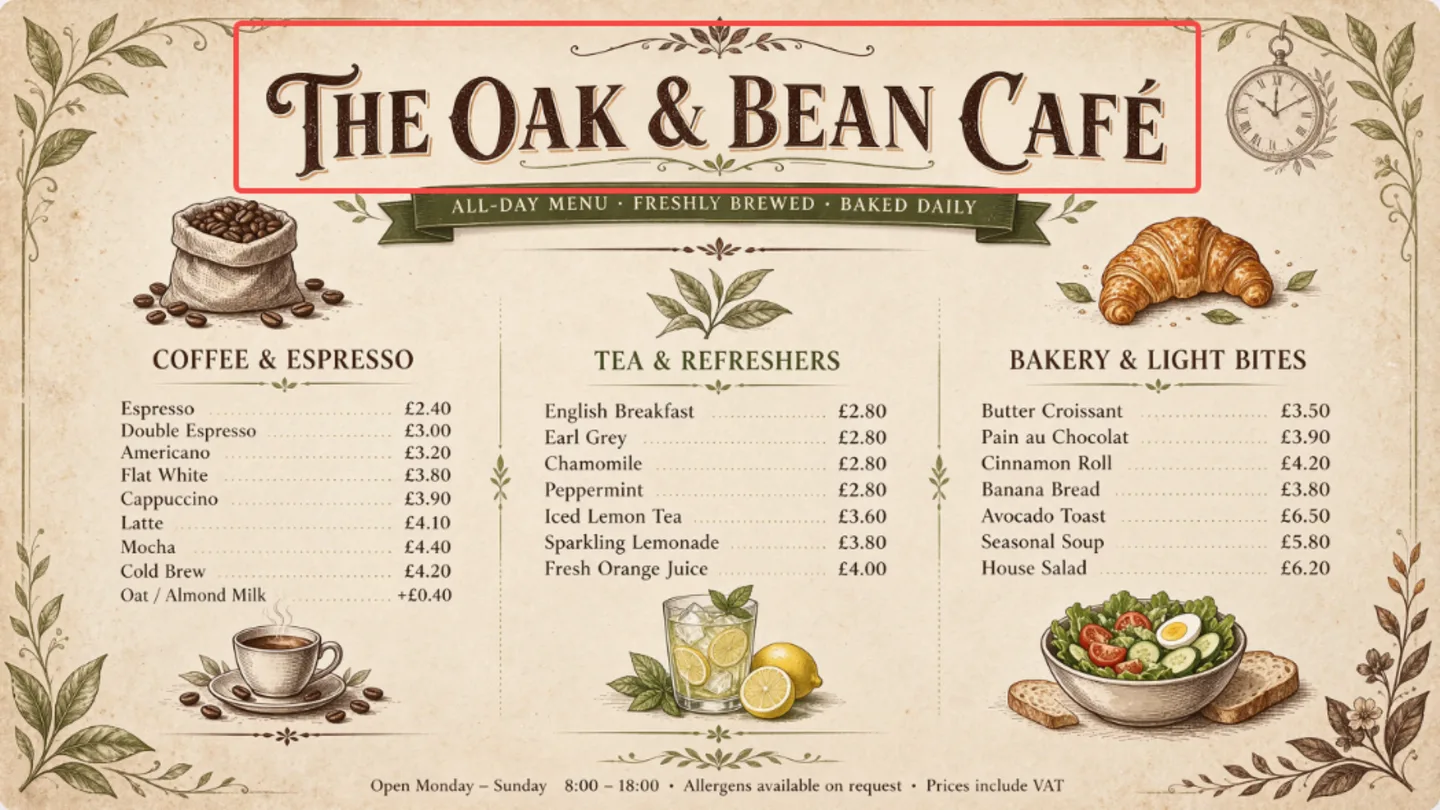
Yes, a menu can be updated without the design file
If the only menu file you have is an exported JPG or PNG, the text is part of the image. Changing the café name or the opening hours means removing the old characters and drawing new ones over the same background, in the same type style.
That is doable with an AI text editor, but a menu is not a friendly target. It usually carries twenty or more price lines, several type styles and a footer where three different statements share one line. The edit that fails is rarely the one you aimed at — it is the line next to it.
The workflow below uses a real café menu with 23 priced items in three sections. Two separate edits were made, in this order: the café name, then the opening hours.
Write down both changes before you touch the image
Vague instructions produce vague results. Copy the exact old and new strings out of the image first.
- Name: THE COPPER HOUR CAFÉ → THE OAK & BEAN CAFÉ
- Hours: Open Monday - Sunday 8:00 - 18:00 → Open Tuesday - Sunday 9:00 - 17:00
Two details decide whether the result reads as a mistake. In the name, the accent on CAFÉ and the ampersand in OAK & BEAN must survive the edit; a dropped accent or a narrow “and” is the first thing a regular customer notices. In the hours, keep the spacing around the dash the same as the original line — if the artwork uses spaces on both sides, the new line should too.
Then list what must not move: the ALL-DAY MENU • FRESHLY BREWED • BAKED DAILY tagline, the three section headings, all 23 prices, and the footer phrases about allergens and VAT. That list is your review checklist later.
Edit the name first
Start with the largest type on the image. The name sits alone at the top, so any drift in weight, letter spacing or background texture is easy to spot before you touch anything small.
Use an instruction like this one, and state that the style must stay:
Change “THE COPPER HOUR CAFÉ” to “THE OAK & BEAN CAFÉ”. Keep the type style, size and spacing of the original title, and keep the background unchanged.
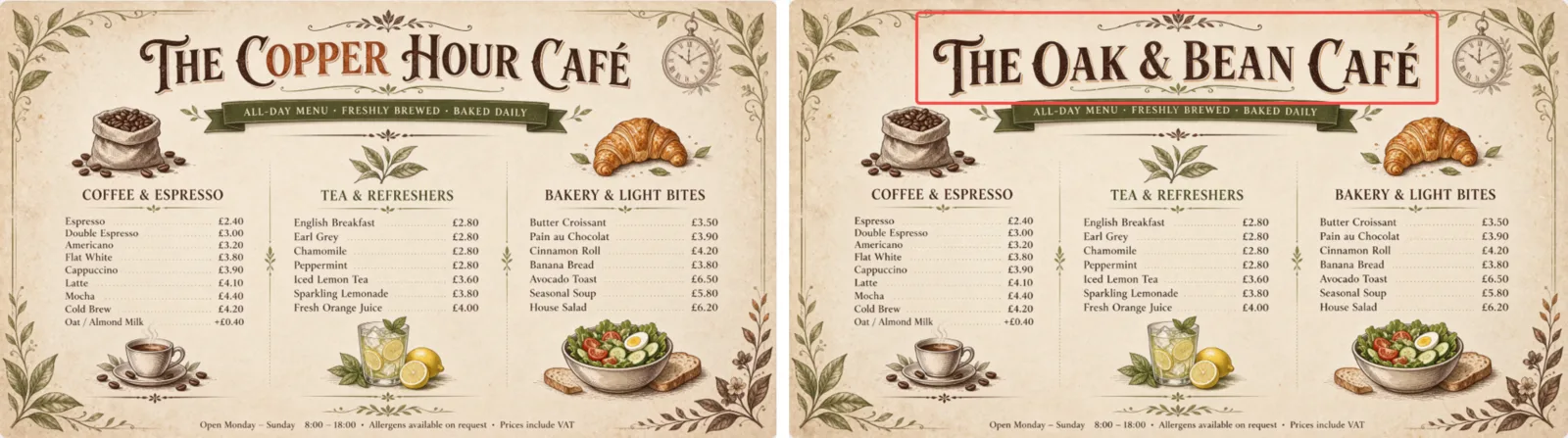
Check the result at 100% zoom rather than in the thumbnail:
- Every letter of the new name, including the É accent.
- The ampersand: is it a matching weight, or visibly thinner?
- Whether the old name leaves a faint edge behind the new letters.
- The paper or texture behind the title — a flat patch where the old letters were removed is a giveaway.
- The tagline directly below the title. It must be untouched, character for character.
Edit the hours with an area selection
The opening hours are the hardest part of this image, because they are not alone. The bottom footer is a single line:
Open Monday - Sunday 8:00 - 18:00 • Allergens available on request • Prices include VAT
Give the editor the whole line to work with and it may decide the neighbouring phrases are part of the job. On a menu, that is the difference between a corrected sign and a published statement about allergens.
So restrict the edit to the hours. PhotoTextFix has a Mark area control: you drag a box over the part of the image you want changed, then send the instruction as usual.
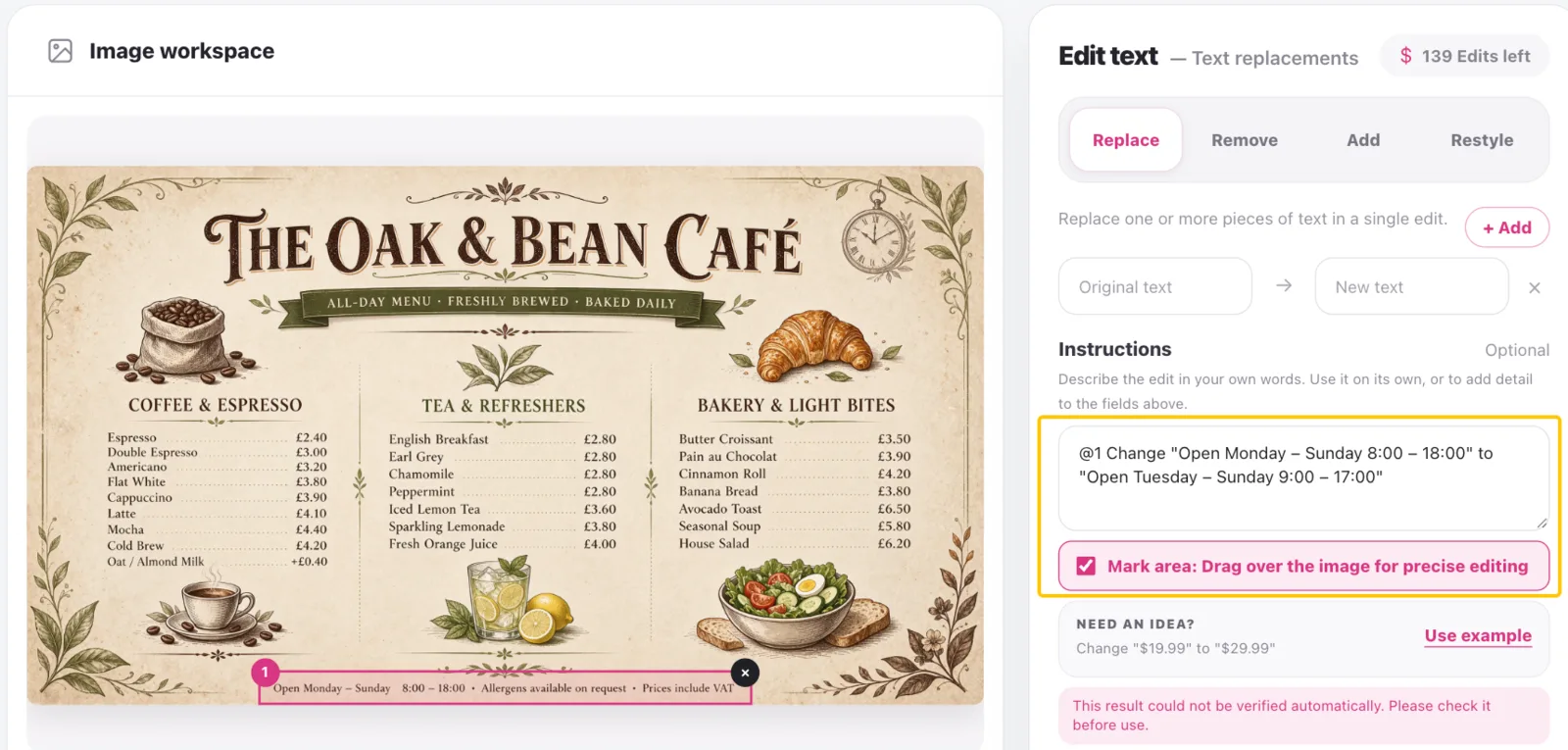
Change “Open Monday - Sunday 8:00 - 18:00” to “Open Tuesday - Sunday 9:00 - 17:00”.
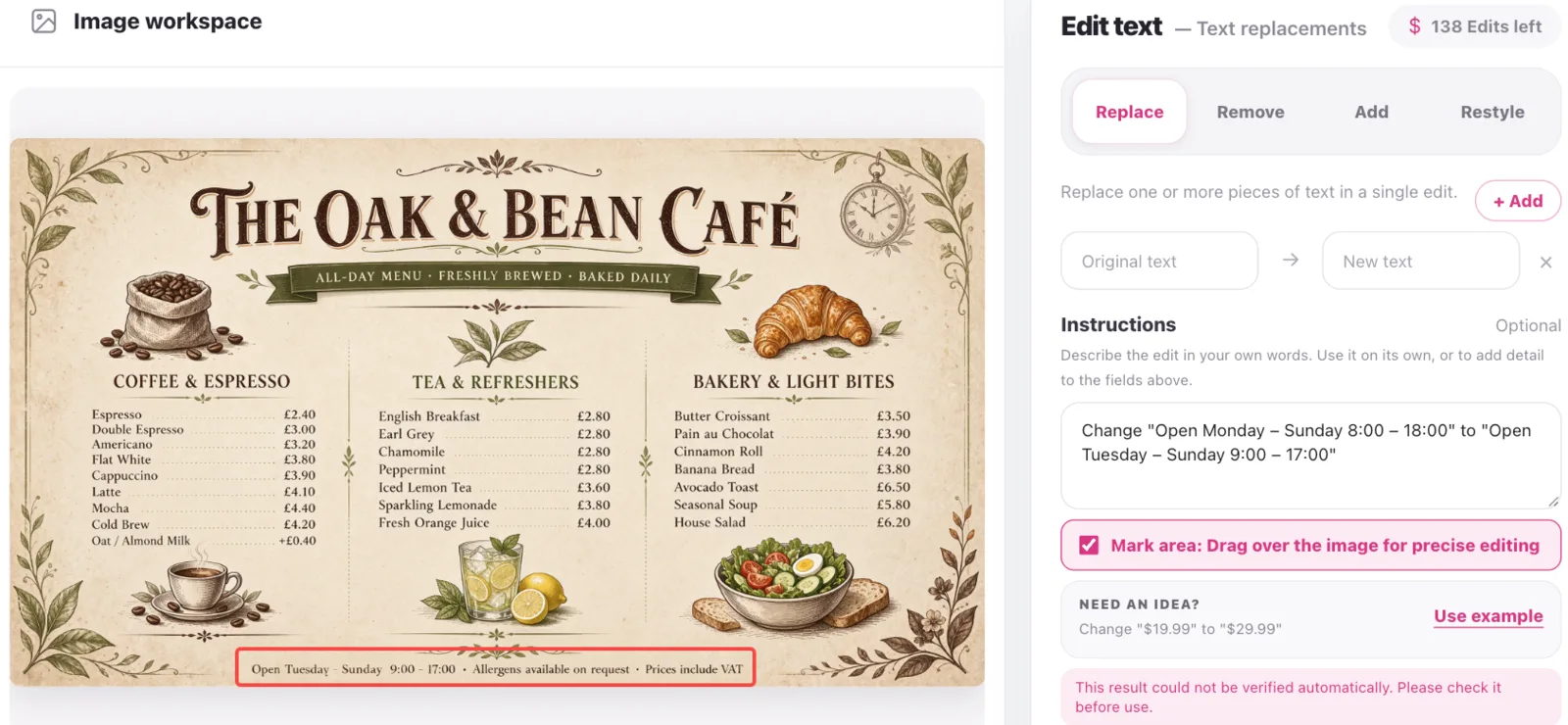
The result keeps the rest of the footer intact: “Allergens available on request” and “Prices include VAT” are still there, still in the same size, and the line is still one continuous statement. That is what the area selection is buying you.
Check before you publish
The editor tells you when it cannot confirm its own output. This warning appeared on the hours edit:
This result could not be verified automatically. Please check it before use.
Treat that as the real instruction, not boilerplate. A short list to run through at full size:
- Days: does the range start and end on the days you meant?
- Times: both values, including the leading digits — 9:00 is not 19:00.
- Dash and spacing: same shape and spacing as the rest of the line.
- Footer: allergens and VAT phrases still present and unchanged.
- Every price line: unchanged, including the currency symbol and decimals.
- Section headings: unchanged.
- Background: no seam, smudge or flat patch where text was removed.
- Phone check: open the exported image at phone width. Small type is where leftovers hide.
When editing the photo is the wrong move
The photo is a copy of the information, not the information itself. If you are changing opening hours because the café’s hours actually changed, the poster, the chalkboard, the Google listing and the website all need the same change — otherwise the corrected image is just a more convincing mistake.
Skip the image edit entirely when:
- The original design file exists. Editing vector text takes minutes and leaves nothing to verify.
- The image is a legal notice: allergen tables, licences, tax plates, or anything a customer could rely on in a dispute.
- The output will be printed large. A 1048-pixel-wide export has no room for a new headline at poster size.
- Nobody can check the result before it goes out.
Keep a record of what you changed
Save the original export, the instruction you used, the result file and the date. If the café changes hands or a customer queries a price, you will want to know which version was live and when. It also makes the next edit faster: you already know which lines the tool handled cleanly and which ones needed a second pass.
Two edits, one export, no design file. The menu above is a normal case: dense, but made of short independent statements that can be changed one at a time — start with the largest line on the text editor and work downwards.
Try it on your own photo
Upload a photo, make the change, and compare the result before you publish.
About the author
Written and maintained by the PhotoTextFix Editorial Team. Each workflow is checked against the current version of PhotoTextFix before we link to it.