

How to Update Prices in Product Photos and Menu Images
Need to change a price in an existing product image or menu graphic? Learn how to update the wording, preserve the layout, and check every number before publishing.
PhotoTextFix Editorial Team · Published November 8, 2026 · 4 min read
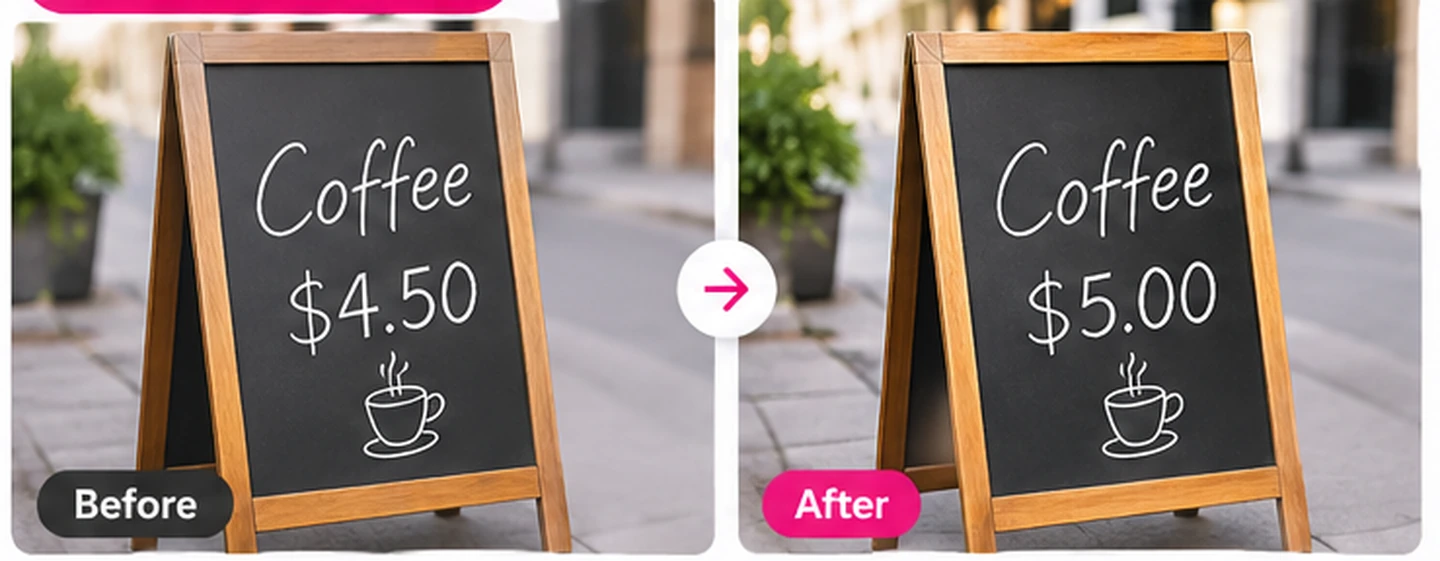
A price change should not mean rebuilding every image
A product price changes. A seasonal menu is updated. A promotional offer ends. The original product photo and layout are still useful, but the price or short line of copy is out of date.
If the only available file is an exported JPG or PNG, the price is part of the image pixels. Updating it means removing the old characters and rendering the new ones so they fit the existing space.
For a short price label or a single menu line, an AI text-editing workflow may save time compared with recreating the entire graphic. It is still important to verify the price and surrounding content before publishing.
Before editing, collect the exact replacement details
Write down the information that must be correct:
- Product or menu item name.
- Old price as it appears in the image.
- New price, including decimal places.
- Currency symbol or currency code.
- Unit, size, or variation if shown.
- Any promotion dates or conditions that remain visible.
For example, $29.99 and $29.9 are not interchangeable in a customer-facing price graphic. A currency symbol, decimal point, or discount condition can change the meaning of the offer.
How to update a price in an existing image
1. Start with the original product image or menu export
Use the highest-resolution source available. A clean product image with a short price label is generally easier to update than a small, heavily compressed graphic with several overlapping text blocks.
2. Describe the old and new prices explicitly
Change the price tag from “$29.99” to “$24.99”. Keep the product, background, label position and overall layout visually consistent. Do not change the product name or any other text.
If there are several prices, identify each by the product name or its location. For example: “Change the price beside the Iced Latte heading from $4.80 to $5.00.”
3. Check the visual fit
The new price may have a different number of characters from the old one. A wider number can affect spacing, alignment, or the balance of the label.
Review:
- The currency symbol and all digits.
- Decimal separators and decimal places.
- The alignment of the new price with the label.
- Whether the new text fits the original area.
- Whether the product image, item name, or other prices changed.

4. Verify the commercial information before publishing
Image editing does not validate whether a price is correct. Compare the final graphic against the actual product catalog, menu, promotion terms, or approved price list.
For a store with many product images, use a single source of truth for prices and maintain a review step before uploading updated graphics. Do not rely on an AI-generated image as the authority for commercial details.
Make the updated price stand out without redesigning the image
Sometimes the price is correct but hard to notice. PhotoTextFix also supports text-style changes such as adjusting the size, color, or weight of existing text.
A suitable instruction might be:
Make the existing price slightly larger and bold, using a dark navy color. Keep the wording and the rest of the design unchanged.
Use emphasis carefully. The price should be easy to find, but it should not cover the product or compete with the main headline.
When a text edit is not enough
A text-focused workflow is best for short labels, prices, dates, and promotional lines. Consider rebuilding the graphic in a design editor if:
- The entire layout or product composition needs to change.
- Many text blocks need different fonts, sizes, and positions.
- The new price requires a completely different label shape.
- The image contains tiny or decorative lettering that must be exact.
- The original product information is incorrect, not just the visible price.
Update a product price with PhotoTextFix
PhotoTextFix can replace a short price or promotional line in an existing product image or menu graphic. Upload the image, state the old and new wording, and review every digit before using the result.
Change a price in a product image with PhotoTextFix
Final price-image checklist
- Confirm the approved price and promotion details first.
- Use a high-resolution original image.
- Quote the old and new price exactly.
- Identify the relevant product or menu item.
- Inspect digits, punctuation, currency, and alignment at full size.
- Check that other product details and prices remain correct.
- Have the final image approved before publishing.
Frequently asked questions
Can I change a price in a product photo without the original design file?
For a short price label, an AI image text editor can replace the visible wording in a flattened JPG or PNG. Results depend on the label design, background, and text clarity.
Can I update prices in a menu image?
You can use a text-editing workflow for short menu prices or item descriptions. If the menu contains many rows or complex typography, editing the source layout may be more reliable.
Can I make the new price bold or change its color?
PhotoTextFix supports text-style adjustments such as color, size, and weight. Describe the desired change and inspect the result to make sure it fits the design.
Does the AI know whether my new price is correct?
No. The model edits the image; it does not verify your catalog, inventory, tax rules, promotion terms, or approved pricing. Confirm all commercial information separately before publication.
Try it on your own photo
Upload a photo, make the change, and compare the result before you publish.
About the author
Written and maintained by the PhotoTextFix Editorial Team. Each workflow is checked against the current version of PhotoTextFix before we link to it.